Mobile Tickets
The Monument tickets will be distributed through mobile delivery and accessed by ticket holders through digital wallets on smartphones. The move to mobile ticketing allows for faster delivery of tickets to guests, contactless transactions at gates and more flexibility to ticket holders.

DOWNLOADING FROM EMAIL
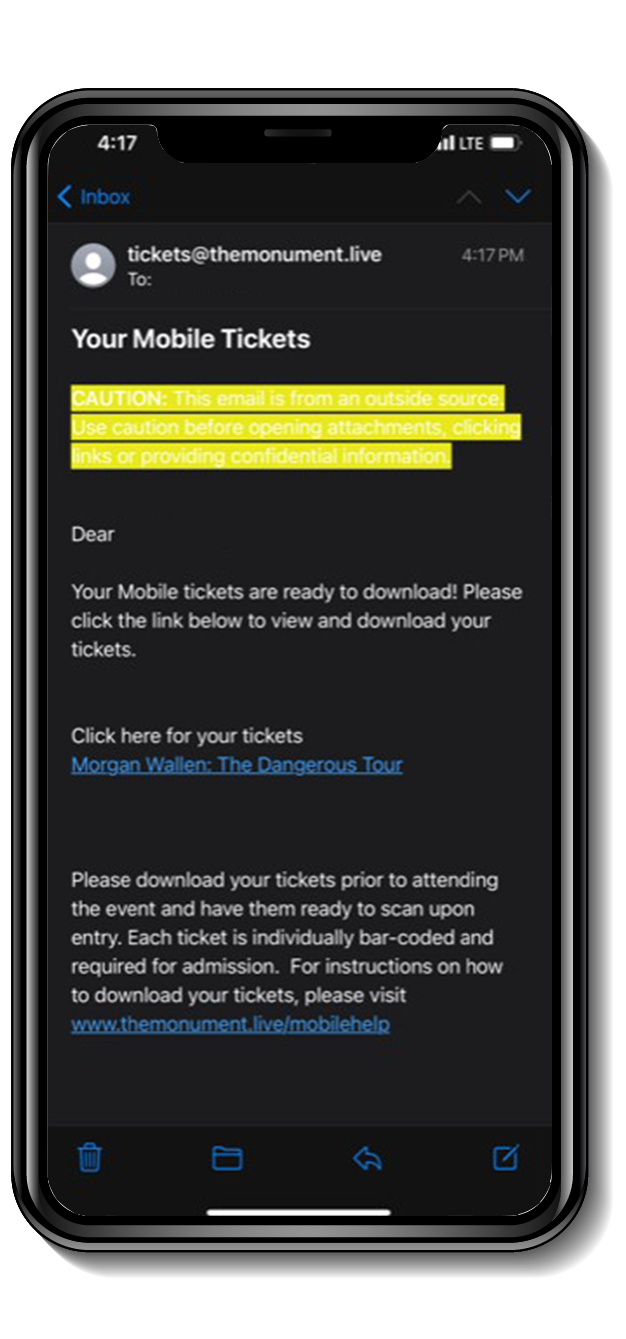 |
STEP 1You will receive an email from tickets@themonument.live with the subject "Your Mobile Tickets". Using your phone, click on the link for the event you want to add to your phone. |
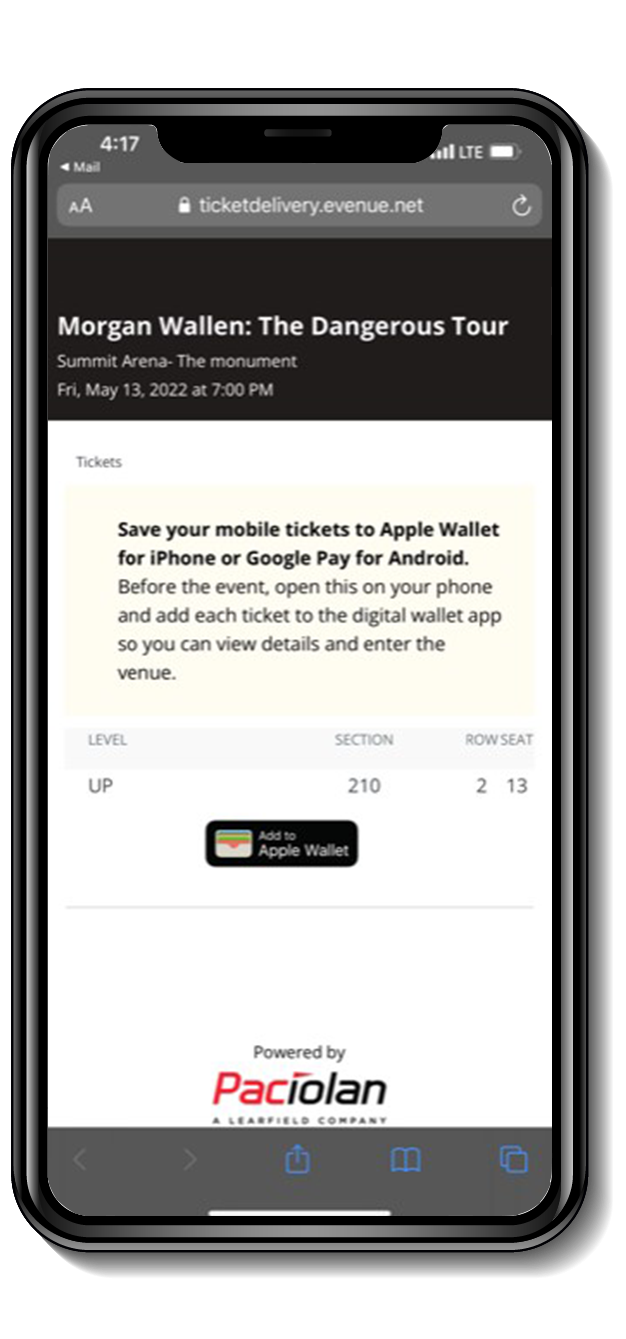 |
STEP 2Tap to save your tickets to your smartphone. Tap the button(s) to add your tickets to your Apple Wallet or Google Pay App. Tickets will be saved on your phone for easy access. Note: You must tap the icon for each seat to add them to the digital wallet. |
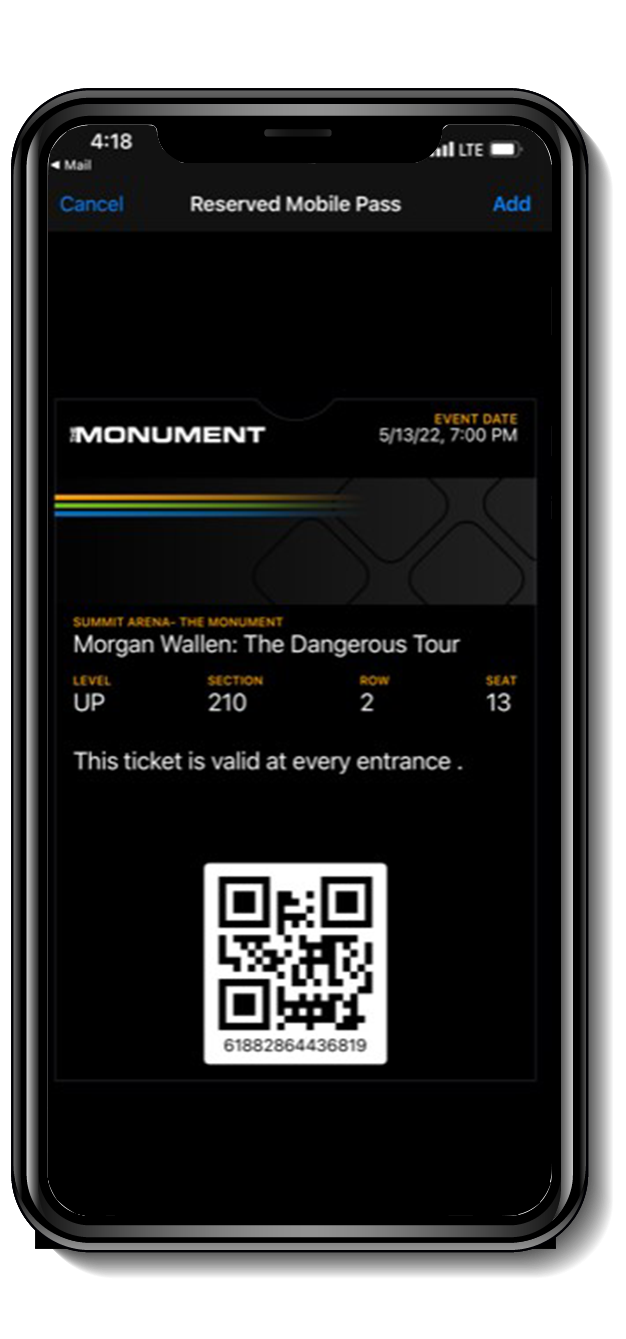 |
STEP 3 (APPLE)If you choose Apple Wallet, tap the ‘Add’ button to add your tickets to your Apple Wallet. On event day, your iPhone will notify you on your home screen with a quick access notification icon. Your ticket can be found in your Wallet app on your iPhone. |
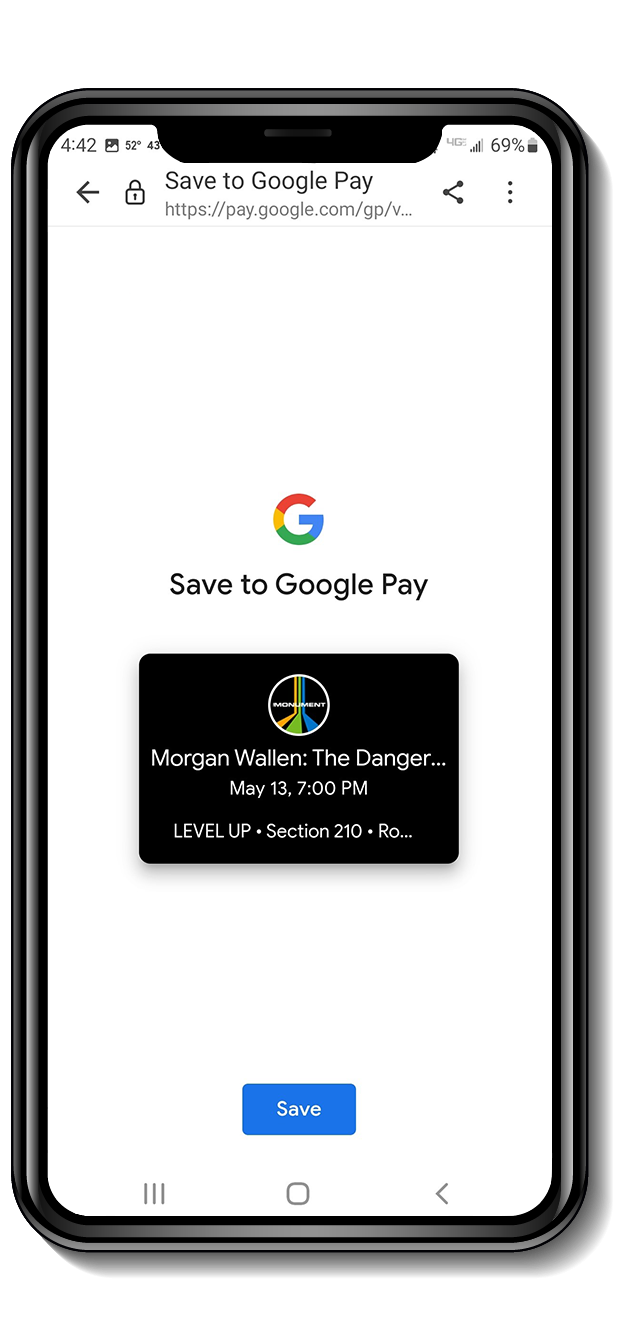 |
STEP 3 (GOOGLE)For Google Pay, just save to your phone. Tap ‘Save to phone’ and your pass will save to your Google account. You can access your ticket(s) in the Google Pay App on event. Your ticket can be found in your GPay app on your phone. |
DOWNLOADING FROM PHONE
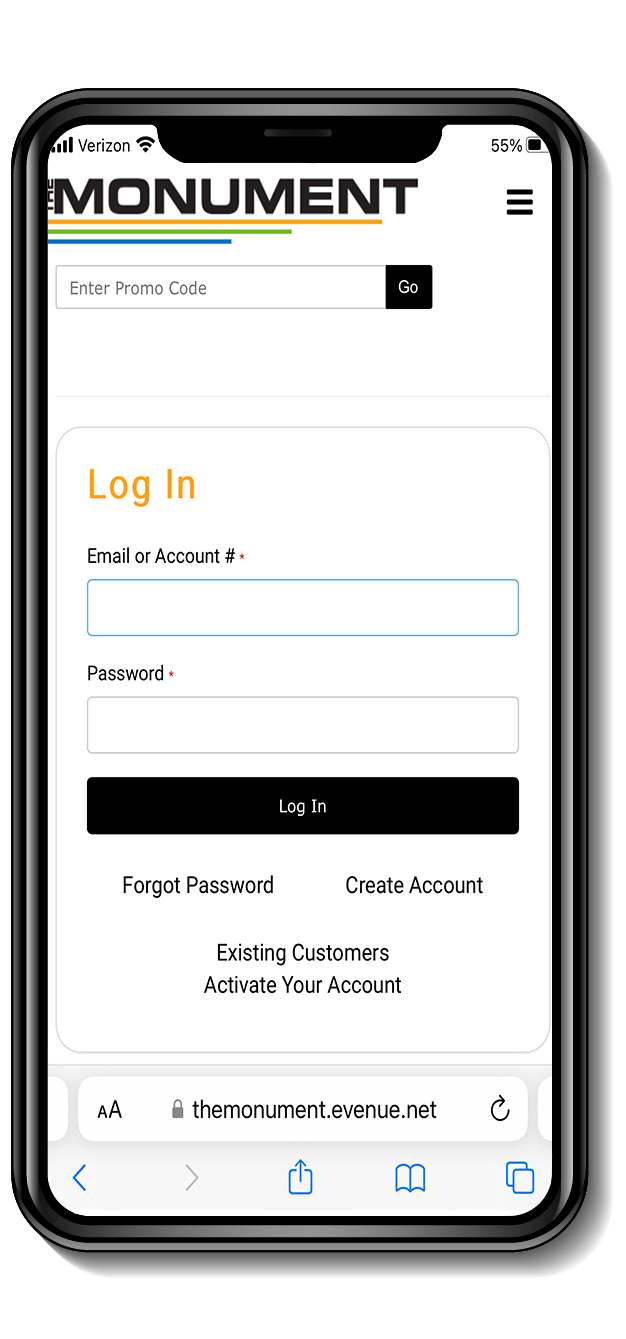 |
STEP 1Log-in to your account at TheMonument.Live/MyAccount |
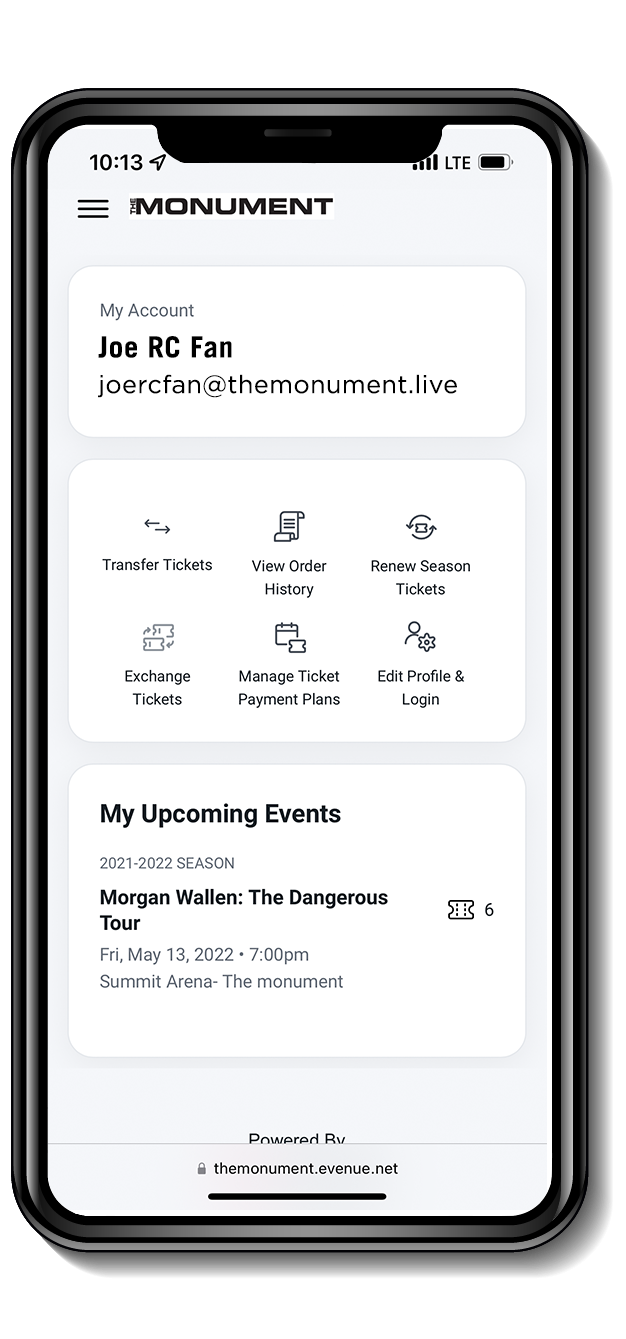 |
STEP 2A list of your tickets will appear. Tap the link of the event that you wish to save. |
|
STEP 3Tap the button(s) to add your tickets to your Apple Wallet or Google Pay App. Tickets will be saved on your phone for easy access. |
|
STEP 4 (APPLE)Tap the ‘Add’ button to add your tickets to your Apple Wallet. On event day, your iPhone will notify you on your home screen with a quick access notification icon. Your ticket can be found in your Apple Wallet. |
|
STEP 4 (GOOGLE)Tap Save to phone and your pass will save to your Google account. You can access your ticket(s) in the Google Pay App on your phone. |
TRANSFER TICKETS
|
STEP 1Log-in to your account at TheMonument.Live/Account-Login |
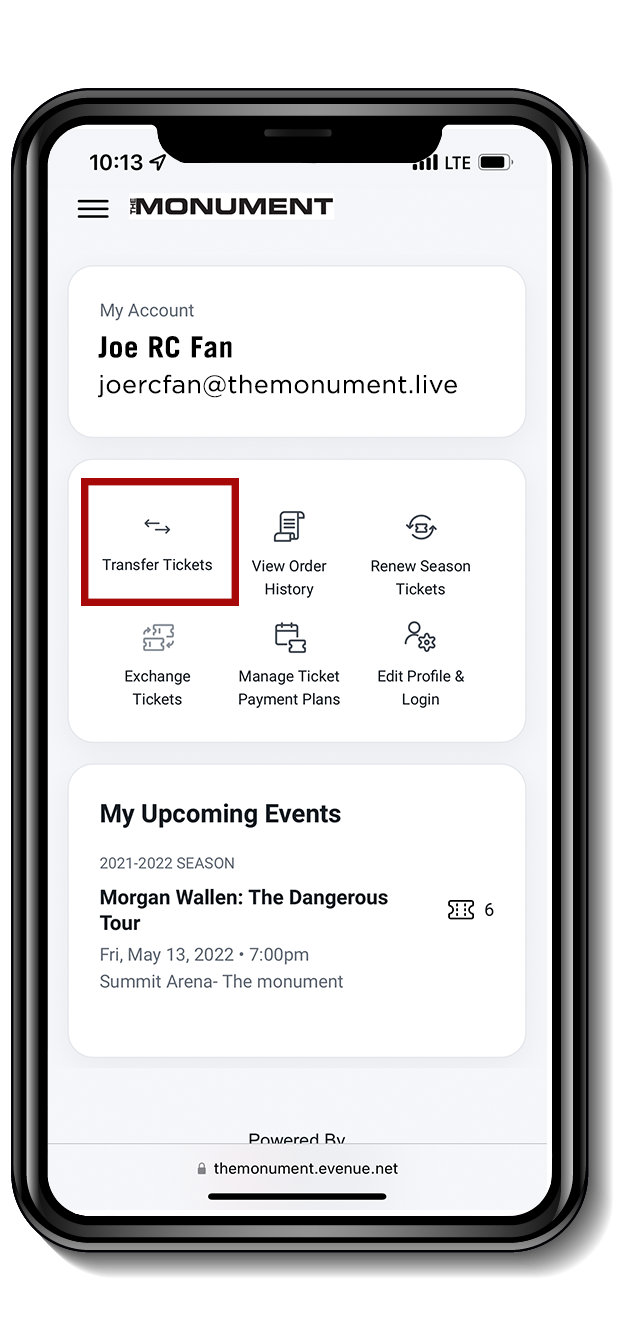 |
STEP 2Click “TRANSFER TICKETS” |
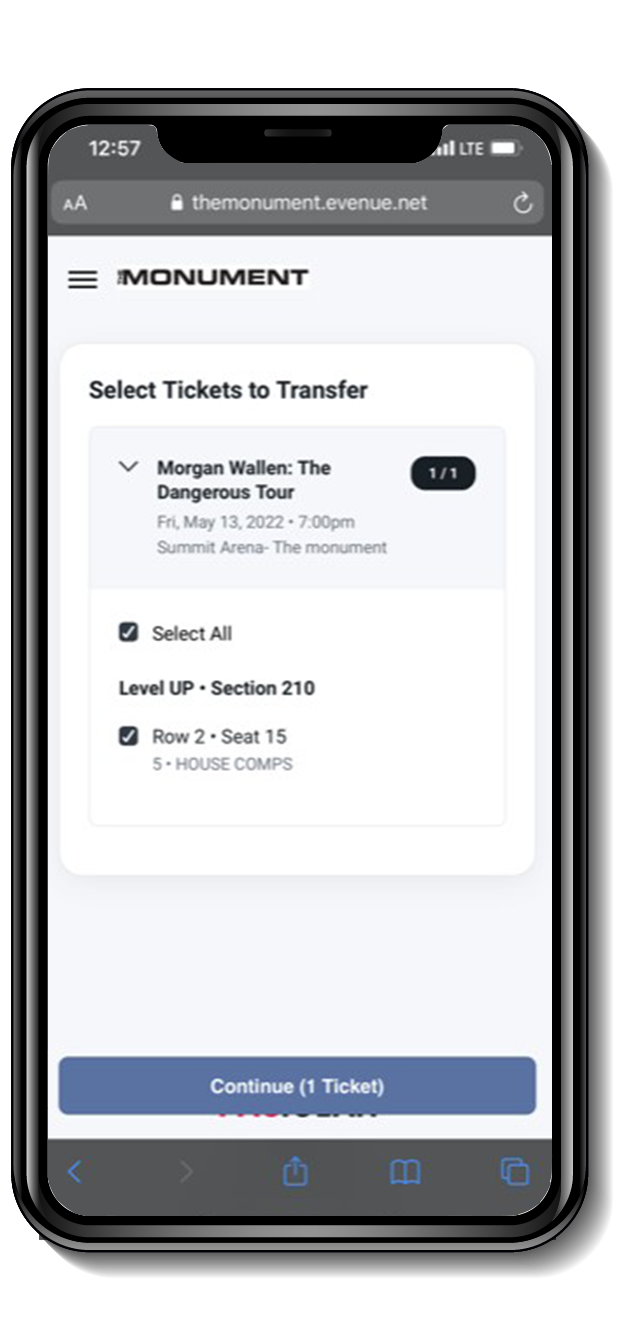 |
STEP 3Select the event you are transferring tickets from, and then select the tickets you are wanting to transfer. Click “Continue” at the bottom of the screen. |
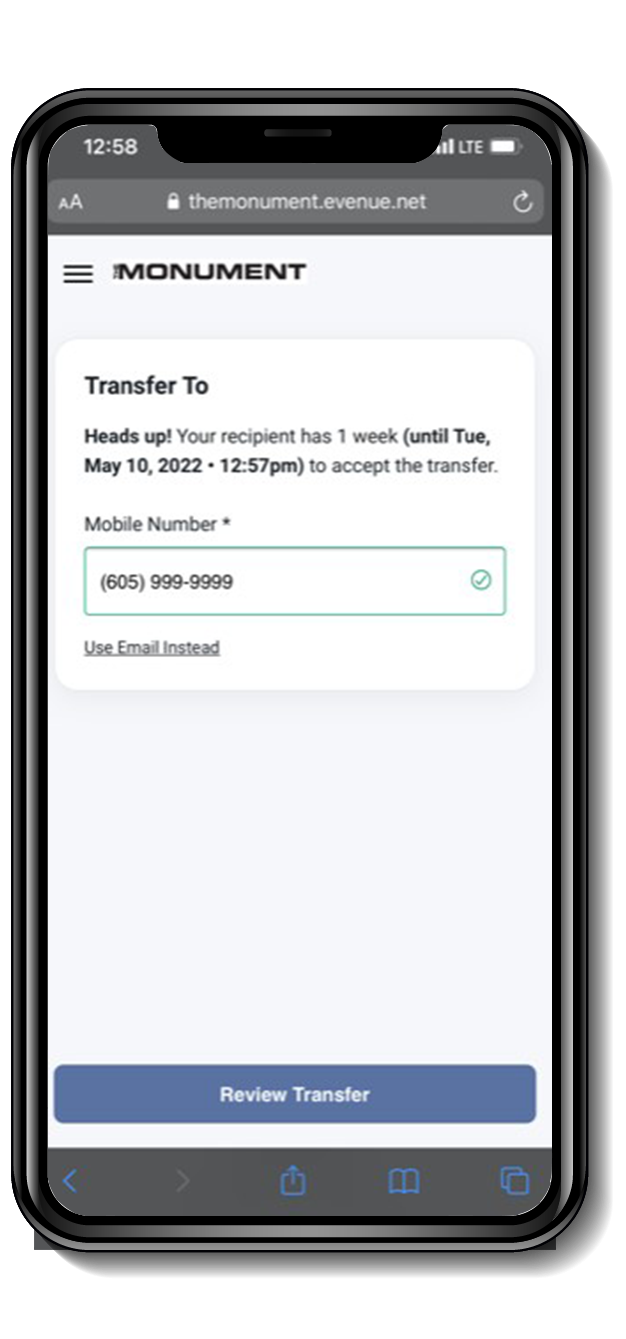 |
STEP 4Enter the cell phone number or email of the person you would like to transfer the tickets to. Click “Review Transfer” at the bottom of the screen. |
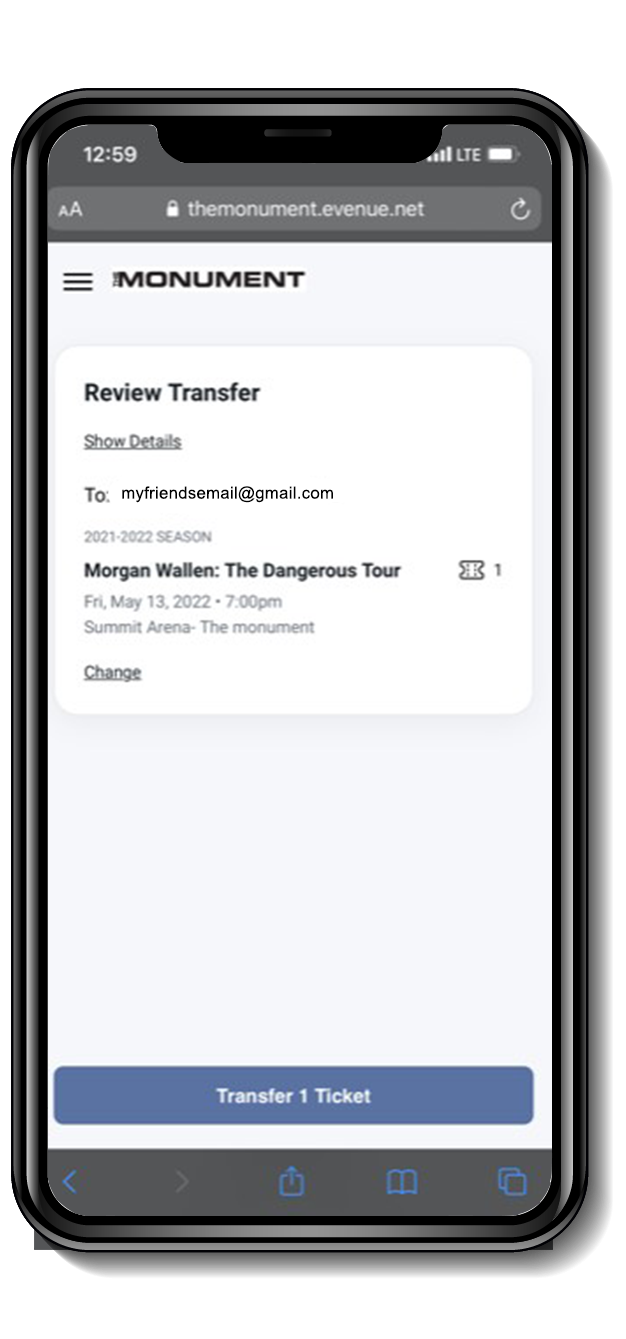 |
STEP 5Once you have reviewed that the recipients phone number or email address and ticket information are correct, click “Transfer Tickets” at the bottom of the screen. |
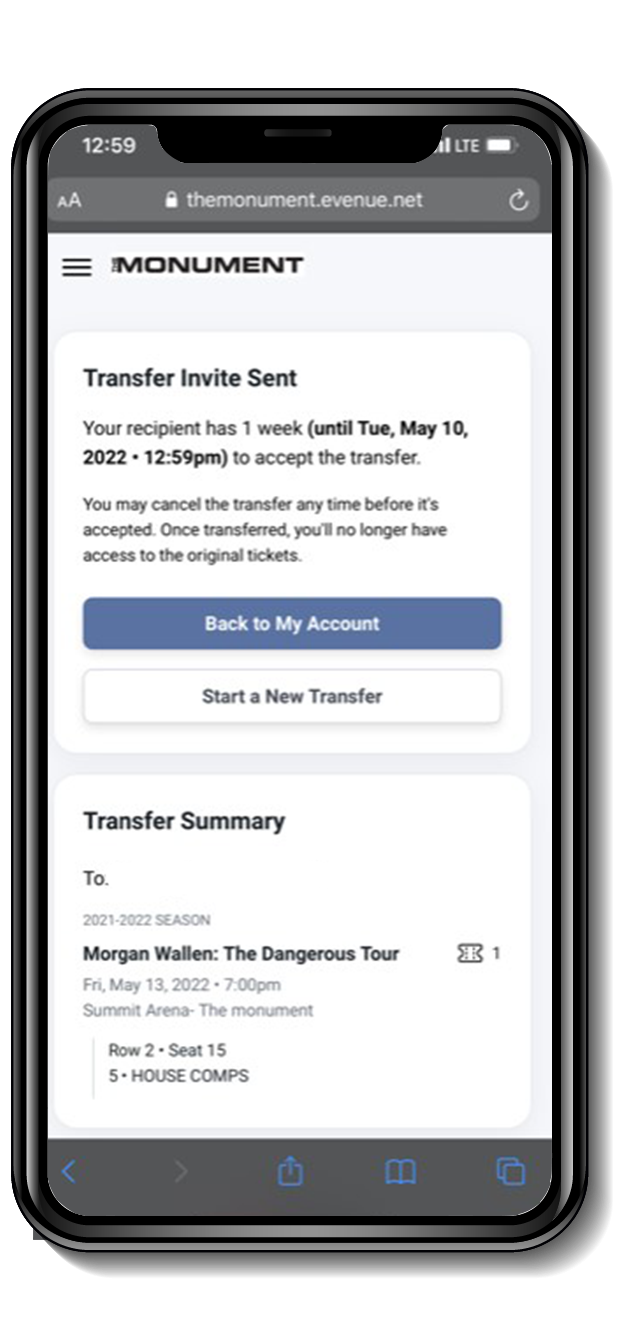 |
STEP 6You will see a confirmation screen once the transfer has been sent. The recipient will have 1 week to accept the transfer, if sent via your mobile device. |
ACCEPT THE TRANSFER
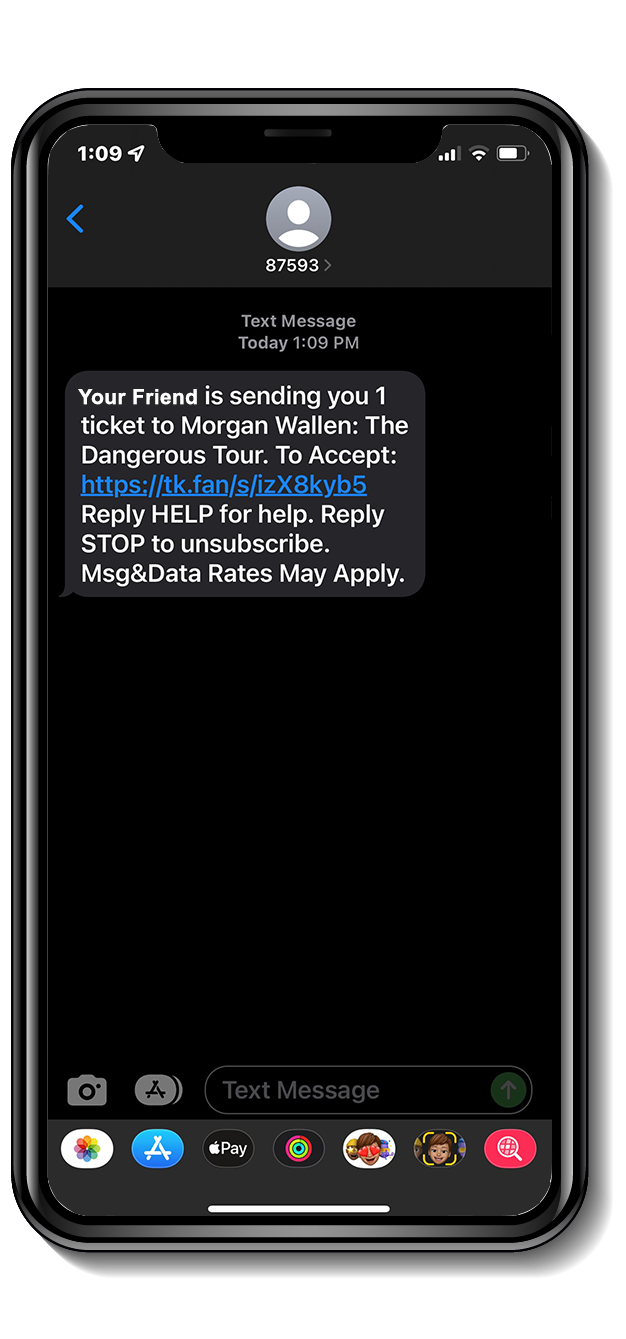 |
STEP 1You will receive a text message or email saying that your friend is sending you tickets. Click on the link in the message to accept. |
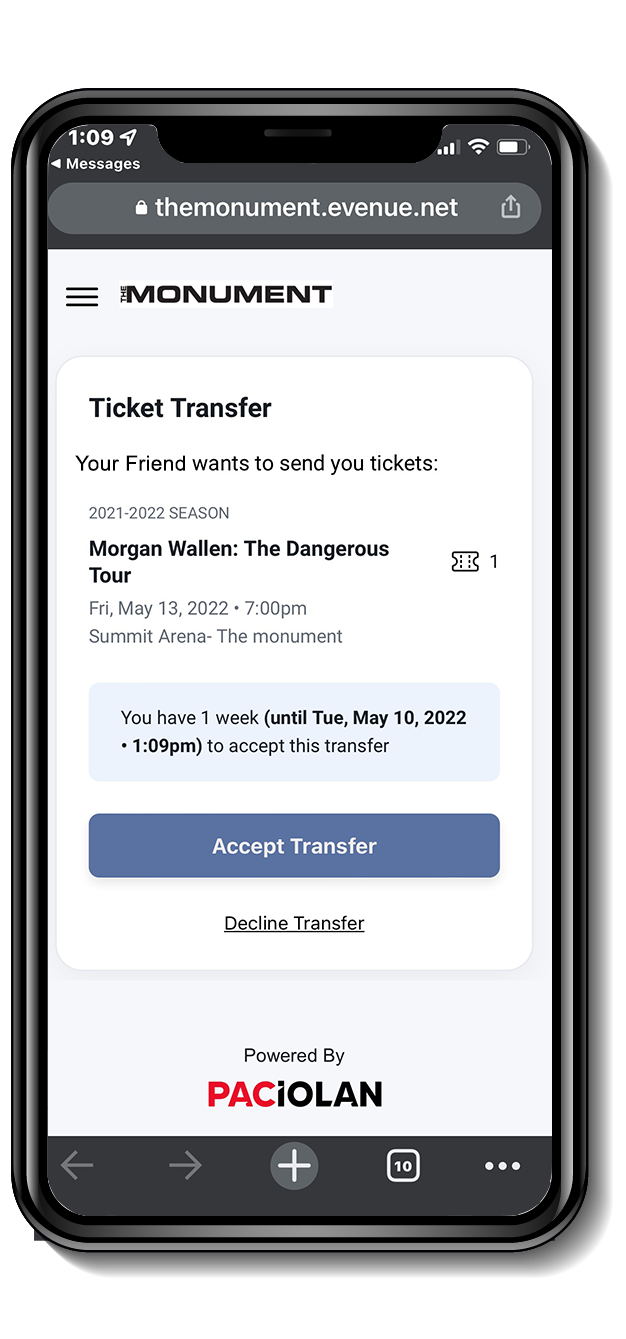 |
STEP 2Click Accept Transfer. Note: If receiving the transfer via email you must accept the tickets on your mobile phone. Tickets must be displayed on a mobile phone, they cannot be printed. |
|
STEP 3If you already have a The Monument My Account, sign in as a Returning Online Customer using your email address/Account Number and password. If you don't have an account simply create one. |
|
STEP 4Click on the icon(s) to Add to Your Apple Wallet or Google Pay. |
|
STEP 5 (Google)Click “Add” to save to your Apple Wallet or “Save” to save the ticket to your Google Pay Account. |
|
STEP 4 (APPLE)Tap the ‘Add’ button to add your tickets to your Apple Wallet. On event day, your iPhone will notify you on your home screen with a quick access notification icon. Your ticket can be found in your Wallet app on your iPhone. |
FAQ
- Why the transition to mobile ticketing?
Adopting mobile ticketing is all about improving the fan experience with quick and convenient entry into the venue, reduces the risk of lost, stolen or counterfeit tickets, and allows you to manage, transfer or sell your tickets at any time directly from your smartphone.
- Can I have multiple tickets on the same mobile device?
Yes. You can view all of your tickets by swiping left or right on your smartphone. We highly encourage you to transfer a ticket to each member of your party to allow for the easiest entry and access throughout the venue.
- Can I still print my tickets from home?
Tickets will no longer include a print-at-home option. This decision was made to protect the integrity of your tickets and prevent fraud and counterfeit issues.
- What if my guest(s) and I arrive at the venue at different times?
You’ll need to transfer a ticket to each member of your party. This allows you and your guest(s) to arrive at the venue at your own convenience. Once the ticket transfer offer has been sent to your guest(s), they will receive an e-mail instructing them to accept the tickets and add it to their mobile wallet.
- Does the person I’m transferring tickets to need to have an account?
Yes, the person receiving your tickets will need to log into (or establish) an account to complete the transfer, but they do not need to have one prior to the transfer and it is free to create an account to accept transferred tickets. By logging into or establishing an account to receive a transferred ticket, our ticketing staff will have a record of the original ticket buyer and transfer to be able to assist the ticket holder should any issues arise with the tickets on the day of the event.
- What if don’t have a smartphone or have additional questions?
We understand there can be many questions, and we’re here to help! CLICK HERE to submit a request and a member of our ticketing team will be in touch as soon as possible to answer your questions.
- What are my options if digital tickets don’t work or something happens to my phone?
We recommend making sure your mobile device is fully charged on event day and downloading your tickets to the Apple or Google wallet, however there are options if a problem arises. You can come to the ticket window, present an ID and we will be able to print your tickets. NOTE: This will work as long as the tickets have not been transferred multiple times, as the ticketing staff will need to confirm the original ticket holder in order to print tickets. This process will invalidate any digital tickets, so only the printed tickets will grant admission to the event.
- Can you transfer a digital ticket just by sharing screenshots of a digital ticket?
To eliminate fraudulent tickets we highly discourage sharing screenshots of digital tickets. Sharing tickets as screenshots can cause the recipient a problem on event day. By forgoing the transfer process available through My Account we lose the tracking ability of the digital tickets and will be unable to assist anyone other than the original ticket holder should an issue arise.
- Do I have to have an account to accept tickets transferred to me?
Yes, it is free to create an account to accept tickets that have been transferred to you. By logging into or establishing an account to receive a transferred ticket, our ticketing staff will have a record of the original ticket buyer and transfer to be able to assist the ticket holder should any issues arise with the tickets on event day.
- I have multiple tickets, do I have to download each digital ticket for a event individually?
No, as long as your tickets were bought together (i.e. not in different orders) you will be able to download the group for each event together and then save the tickets to your mobile device. Once you get to the gate, you will have to scan each QR code, but you should be able to do that just by swiping on your mobile device between each scan.
However, if you placed multiple orders for tickets (i.e. two or more different sections) you will have to download the digital tickets to your mobile device for each order separately.